
Ryzen 7000/9000 Undervolting Guide
>> INTRODUCTION
RYZEN UNDERVOLTING
More performance, less heat – for free.
⚡ WHY DO THIS?
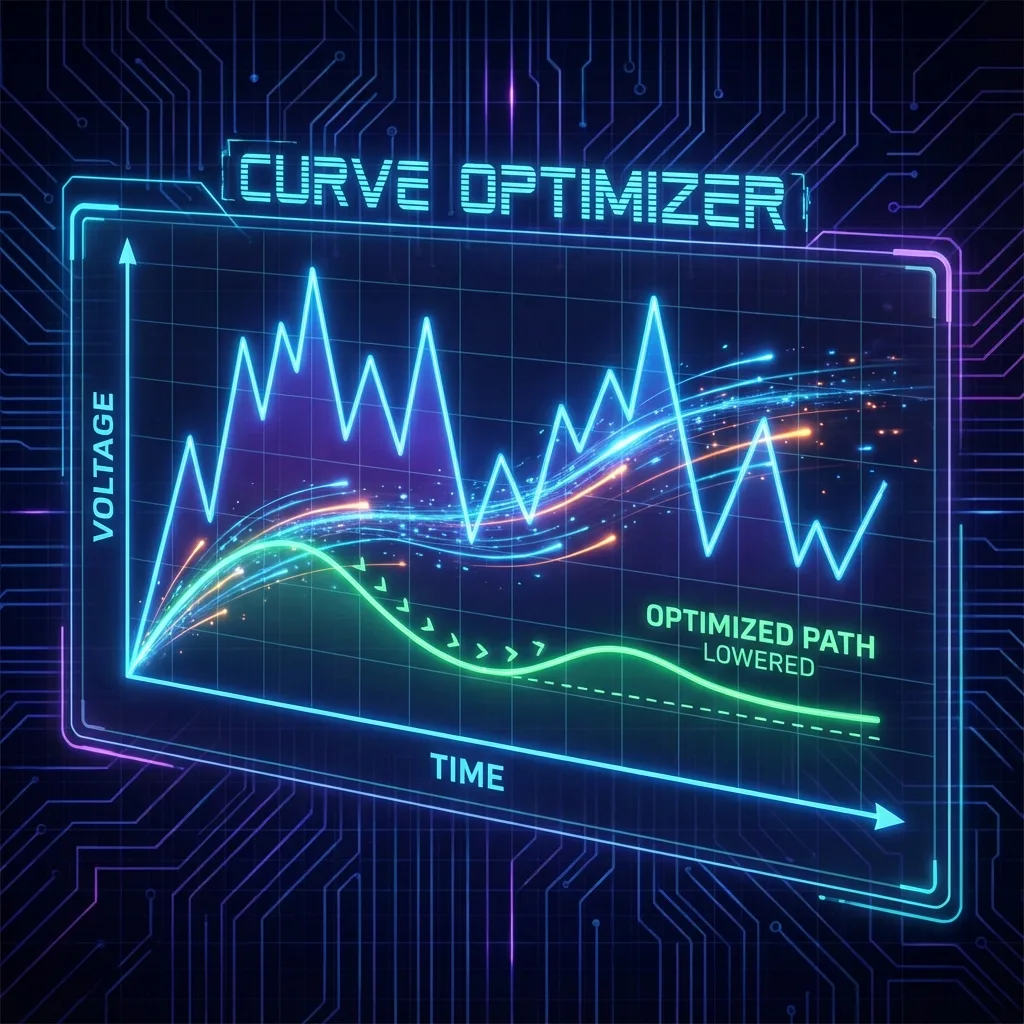
AMD Ryzen 7000 and 9000 processors come with very aggressive factory settings. With Curve Optimizer
(Undervolting), we can lower the voltage.
The result:
- Cooler Temperatures (-5°C to -15°C)
- Higher Clock Speeds (Sustained boost)
- Lower Power Consumption
⚠️ WARNING:
While undervolting is very safe compared to overclocking, extreme instability can lead to data loss. Test your system thoroughly! All changes are done at your own risk.
>> TOOLBOX
You will need these free tools:
>> THE PROCESS
ENTER BIOS
Restart your PC and press DEL or F2 to enter BIOS. (Press F7 for "Advanced Mode" if needed).
FIND PRECISION BOOST OVERDRIVE (PBO)
Navigate to:
> Advanced CPU Settings or > AMD Overclocking
Look for Precision Boost Overdrive.
Set it from "Auto" to Advanced.

CONFIGURE CURVE OPTIMIZER
Open the Curve Optimizer submenu.
What do these values mean?
Negative: We are removing voltage.
Magnitude 15: We start with -15 counts (approx. -45 to
-75mV).
This is a safe starting point for almost all Ryzen 7000/9000 CPUs.
* Pros use "Per Core", but "All Cores" is sufficient for 95% of results.
TEST & OPTIMIZE
- Save and exit BIOS (F10).
- Windows boots? Good. Run Cinebench.
- Compare your score with before. You should have a higher score!
- Run OCCT for 30min (CPU Test).
System crashes?
Go back to BIOS and change Magnitude from 15 to 10 or 5.
Everything stable?
Try Magnitude 20, then 25, until it becomes unstable.
>> CONCLUSION
You have successfully undervolted your CPU! Expect lower temperatures with equal or better gaming performance. This is one of the easiest and most effective tweaks for modern Ryzen systems.
>> FAQ / TROUBLESHOOTING
❓ System won't boot / BSOD after undervolting
You went too far. Reset CMOS (remove battery for 30s with PSU unplugged), enter BIOS, and re-apply a less aggressive offset. Add 25mV more voltage than the failing value and test again. Most Ryzen 5000/7000 chips are stable at -50 to -75 mV, some even -100 mV.
❓ My undervolt "disappears" after rebooting
Save it as a BIOS profile (most boards have 2-8 named profile slots). Ryzen Master offsets are reset on every boot by design — they're not persistent. For permanent UV, set the offset in BIOS under AMD CBS → CPU Common Options.
❓ Does undervolting void warranty?
No. Undervolting operates strictly within AMD's specified voltage range (it's the opposite of overclocking). It reduces thermal stress and often extends CPU lifespan. AMD explicitly allows it via PBO2 and Curve Optimizer.
❓ Performance is WORSE after undervolting, not better
Your CPU is now hitting its thermal/power limit and downclocking. Solutions: (1) raise the power limit (PPT/TDP/EDC in BIOS), (2) improve cooling, (3) undervolt less aggressively. The undervolt should be paired with a power-limit raise for best results.
❓ Can I undervolt laptops the same way?
Yes, and it's even more beneficial — laptop thermals are the limiting factor. Use Ryzen Master for quick testing, then move the offset to BIOS. Be aware that some OEMs (Dell, HP) lock the Curve Optimizer in their custom BIOS — check before buying if this matters.
❓ Curve Optimizer vs plain offset — what's the difference?
Offset (legacy, Ryzen 1000-3000): single value for all cores. Curve Optimizer (Ryzen 5000+): per-core or per-CCD tuning, can be set to "All Cores" or "Per Core". Per-core is best because Ryzen chips have silicon lottery — some cores can take -30, others -50.
❌ NEED HELP?
CPU tuning is a deep rabbit hole. The community is very active.