
OptiScaler - Upscaling for All GPUs
>> INTRODUCTION
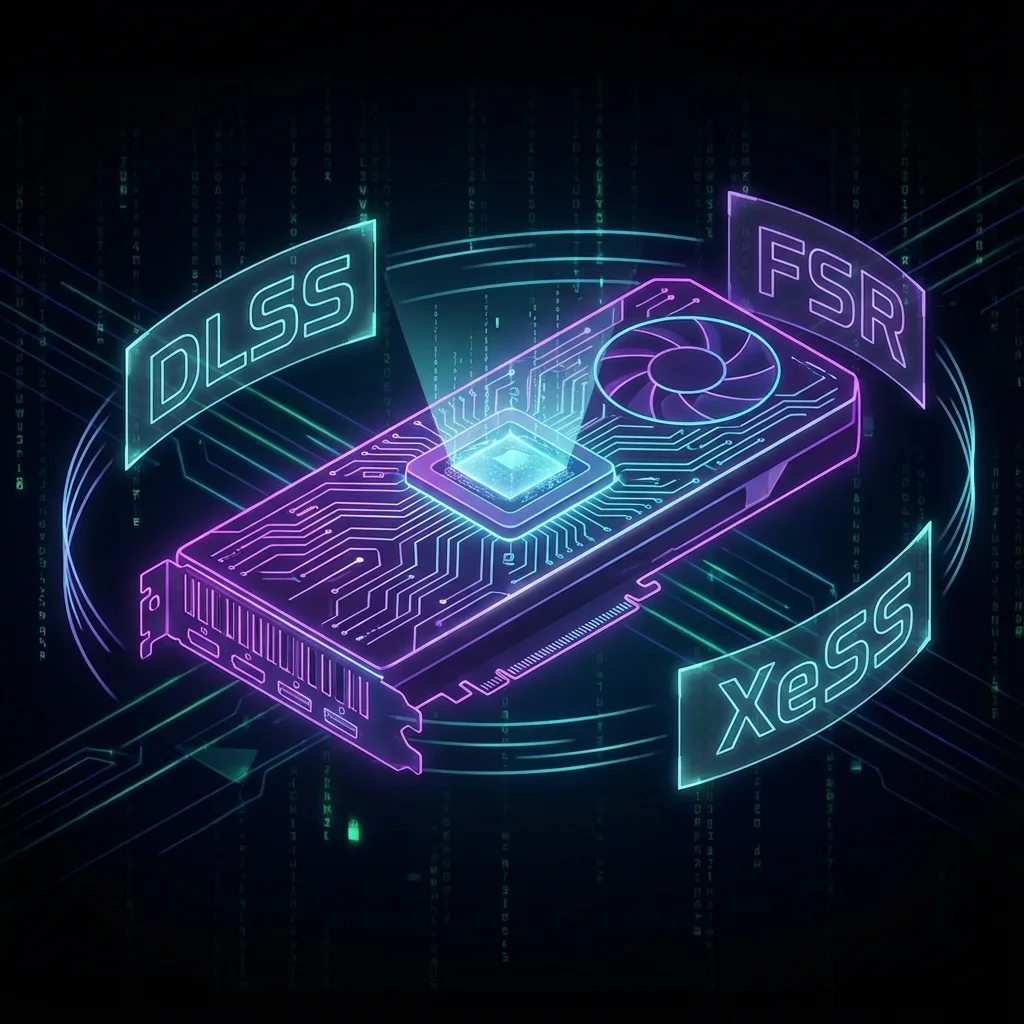
🎮 WHAT IS OPTISCALER?
OptiScaler lets you use DLSS, FSR and XeSS in games –
regardless of your graphics card!
Got an AMD card but want DLSS? No problem!
Intel ARC and FSR3? Works too!
NVIDIA and XeSS? Easy!
⭐ NEW: OPTISCALER MANAGER (CLIENT)
The Optiscaler Client is a modern manager that makes installing
OptiScaler incredibly easy!
✓ Auto-detects Steam, Epic, GOG, EA, Ubisoft, Battle.net, Xbox games
✓ One-Click installation for all your games
✓ Manages components like Fakenvapi, Nukem's DLSSG-to-FSR3
✓ Single-File EXE – no installation required
⚠️ IMPORTANT WARNING:
DO NOT use with online games!
Anti-cheat software may detect OptiScaler as a cheat and ban you!
>> PREREQUISITES
Windows 10/11
Up-to-date Windows with latest updates
A game with DLSS/FSR/XeSS support
The game must support at least one upscaler
7-Zip or WinRAR
To extract OptiScaler files
>> STEP-BY-STEP GUIDE
Download OptiScaler
- Go to github.com/optiscaler/OptiScaler/releases
- Find the latest version (at the top)
- Click on
OptiScaler_vX.X.X.zipto download
Extract the ZIP file
- Right-click on the downloaded ZIP file
- Select
"Extract All..."or"Extract Here" - You'll get a folder with these files:
📁 OptiScaler_vX.X.X/
├── 📄 nvngx.dll
├── 📄 OptiScaler.ini
└── 📄 (more files...)
Find your game folder
You need to find the folder where your game is installed:
🎮 STEAM:
- Open Steam, go to your Library
- Right-click on the game → Manage → Browse Local Files
🎮 EPIC GAMES:
- Open Epic Games Launcher → Library
- Click on the three dots (...) next to the game → Manage
- Click on the folder icon
🎮 GOG:
- Open GOG Galaxy → Library
- Click on the game → Settings icon → Manage installation → Show folder
Copy OptiScaler files to the game
Copy the OptiScaler files to the same folder as the game's .exe file:
- Open the extracted OptiScaler folder
- Select all files (Ctrl + A)
- Copy them (Ctrl + C)
- Go to the game folder (where the .exe is)
- Paste (Ctrl + V)
├── 📄 Game.exe (your game)
├── 📄 nvngx.dll (OptiScaler)
├── 📄 OptiScaler.ini (OptiScaler)
└── 📁 (other game folders...)
Some games have the .exe in a subfolder like bin/ or Game/Binaries/Win64/.
OptiScaler files must ALWAYS be next to the .exe!
Launch game & configure OptiScaler
- Launch the game normally
- Go to the game's Graphics Settings
- Enable DLSS, FSR or XeSS (any of them!)
- Press INSERT in-game to open the OptiScaler menu

The OptiScaler In-Game Overlay Menu
🎛️ IN THE OPTISCALER MENU YOU CAN:
- • Switch upscalers (DLSS ↔ FSR ↔ XeSS)
- • Adjust sharpness
- • Enable Frame Generation (OptiFG)
- • Show performance stats (Page Up/Page Down)
INSERT = Open
menuPage Up = Show
statsPage Down = Cycle
statsAlt+INSERT = If INSERT
doesn't work>> COMMON ISSUES
❓ The menu won't open!
→ Make sure you're in-game (not in main menu)
→ Try Alt + INSERT instead of just INSERT
→ Check if you enabled DLSS/FSR/XeSS in the game settings
❓ The game crashes!
→ Delete the OptiScaler files and download the latest version
→ Some games need special settings – check the Wiki
❓ How do I remove OptiScaler?
→ Simply delete all OptiScaler files from the game folder (nvngx.dll, OptiScaler.ini,
etc.)
>> RESOURCES
>> CONCLUSION
OptiScaler is a game-changer for GPU upscaling! Whether AMD, NVIDIA or Intel – you can now use any upscaler you want.
Happy gaming! 🎮